
What This Error Means
Windows uses permissions to control who can access files and folders.
Even if you are the main user, certain files — especially system files — require administrator access or special permissions.
You may see this error when:
- Deleting or modifying files
- Accessing system folders
- Moving or copying restricted files
- Editing files created by another user
Common Symptoms
- Access denied message when opening files
- Unable to delete or modify files
- Permission prompts appearing repeatedly
- Files owned by another user
- System blocking certain actions
Why This Happens
- Your account does not have permission
- The file belongs to another user or system
- Security settings are restricting access
- Corrupted permission settings
- Antivirus or system restrictions
What Happens Behind the Scenes
Every file and folder in Windows has an owner and a set of permissions.
When you try to access or modify a file, Windows checks whether your account has the required permissions.
If it doesn’t, the system blocks the action and shows this error.
This helps protect important files and prevents accidental changes.
Quick Fix Summary
If you're in a hurry, try these first:
- Run as administrator
- Check file permissions
- Take ownership of the file
- Grant full control access
These fixes resolve the issue for most users.
How to Fix "You Need Permission to Perform This Action" – Step by Step
Follow these steps in order. After each step, try accessing the file again.
Run as Administrator (Quick Fix)
This is the fastest way to bypass permission restrictions.
- Right-click the file or app
- Select Run as administrator
- Click Yes when prompted
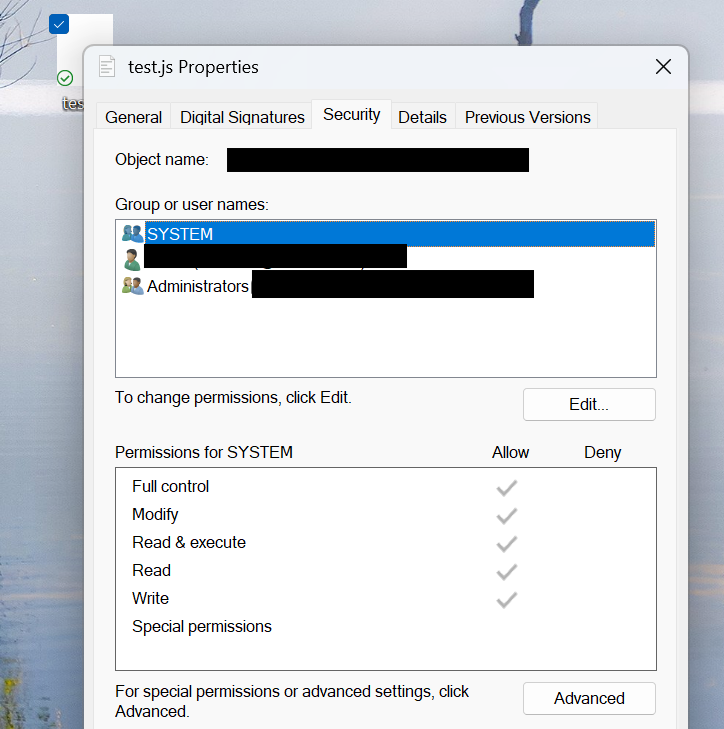
Check File or Folder Permissions
Your account may not have access rights.
- Right-click → Properties
- Go to Security tab
- Select your user account
- Check permissions
Take Ownership of the File or Folder
If the file belongs to another user, you must take ownership.
- Right-click → Properties
- Security → Advanced
- Click “Change” next to Owner
- Enter your username → Apply
Grant Full Control Access
After taking ownership, permissions may still be restricted.
- Go to Security tab
- Select your user
- Enable Full Control
Use Command Prompt (Advanced Fix)
You can force ownership using command-line tools.
- Open Command Prompt as administrator
- Run:
Replace "filepath" with your file location.
Disable Antivirus Temporarily
Security software may block access.
- Disable antivirus temporarily
- Try accessing the file again
Important: Only do this if the file is safe.
Restart Your Computer
Temporary permission issues can sometimes resolve after a restart.
Advanced Fixes (If You Still Don’t Have Permission)
Enable Built-in Administrator Account
This account has full system access.
Check Group Policy Settings
Some systems restrict permissions through policy settings.
Run System File Checker
sfc /scannowReal Example
A common situation is when a user tries to delete a file but gets a permission error.
Even though they are the only user, Windows blocks the action due to ownership settings.
Taking ownership and granting full control usually resolves the issue instantly.
Frequently Asked Questions
Why am I blocked from my own files?
Is it safe to change permissions?
Do I need administrator access?
What is the fastest fix?
Final Thoughts
The "You need permission to perform this action" error is very common and usually easy to fix.
Start with simple steps like running as administrator and checking permissions before moving to advanced solutions.
In most cases, access can be restored within minutes.