
The good news is that this issue is usually easy to fix once you understand what’s causing it.
Below, we’ll break down why this happens and how to fix it step by step.
What This Error Means
The "Access Denied" error appears when Windows blocks you from deleting a file because it believes you don’t have the required permissions.
Even if you're using your own computer, Windows uses strict security rules to protect important files and prevent accidental or harmful actions.
You may see this error when:
- Deleting files or folders
- Removing programs
- Editing system files
- Accessing restricted directories
Common Symptoms
- "Access Denied" message when deleting a file
- "You need permission to perform this action"
- File cannot be deleted even as administrator
- File keeps reappearing after deletion
- System says file is in use
Why This Error Happens
- The file is currently in use by another program
- You don’t have ownership of the file
- File permissions are restricted
- Antivirus or security software is blocking it
- The file is locked by the system
- Corrupted system or file data
What Happens Behind the Scenes
When you try to delete a file, Windows checks:
- Who owns the file
- What permissions your account has
- Whether the file is currently being used
If any of these checks fail, Windows blocks the action and shows the "Access Denied" message.
This helps prevent:
- Accidental deletion of important files
- Programs crashing due to missing files
- Malware modifying critical system data
Quick Fix Summary
If you want a quick solution, try these first:
- Restart your computer
- Close any programs using the file
- Run as administrator
- Try deleting in Safe Mode
These steps solve most cases.
How to Fix Cannot Delete File (Access Denied)
Follow these steps in order. After each step, try deleting the file again.
Close Programs Using the File
The file may still be open in the background.
- Close all apps
- Check Task Manager (Ctrl + Shift + Esc)
- End any processes using the file
Restart Your Computer
A simple restart can release locked files and fix temporary glitches.
Run as Administrator
You may need higher permissions to delete the file.
- Right-click the file
- Select Delete while logged in as admin
Take Ownership of the File
If you don’t own the file, Windows will block deletion.
- Right-click file → Properties
- Go to Security → Advanced
- Click “Change” next to Owner
- Enter your username → Apply
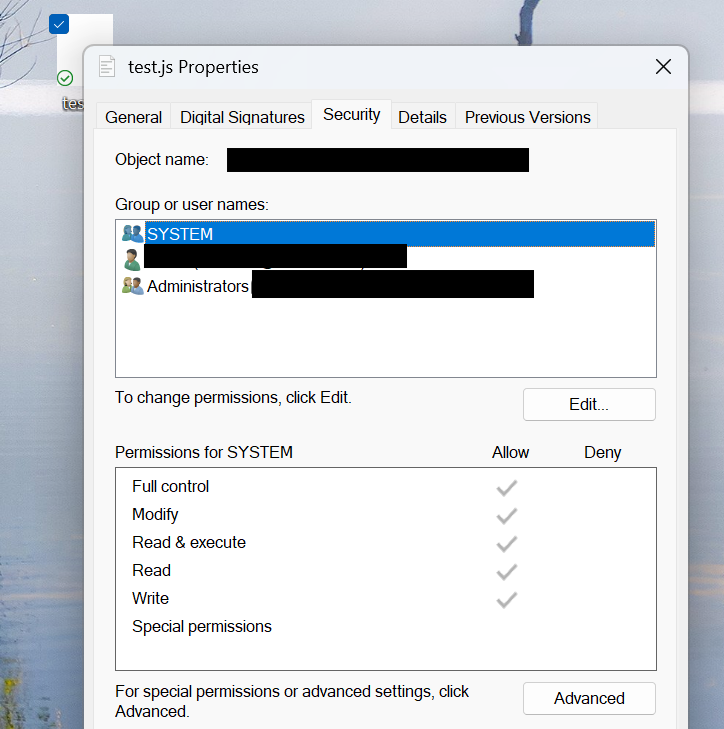
Modify File Permissions
You may need full control to delete the file.
- Go to Properties → Security
- Select your account
- Click Edit → Allow Full Control
Use Command Prompt
Force delete the file using CMD.
- Open Command Prompt as administrator
- Run:
Delete in Safe Mode
Safe Mode prevents most programs from running.
- Restart your PC
- Boot into Safe Mode
- Try deleting the file again
Advanced Fixes
Disable Antivirus Temporarily
Some antivirus tools lock files to protect your system.
Scan for Malware
Malicious files can prevent deletion and mimic system behavior.
Use Third-Party Unlock Tools
Tools like file unlockers can force delete locked files.
Real Life Example
A user tries to delete a file after uninstalling software, but receives an "Access Denied" message.
The file was still being used by a background process. After closing the process in Task Manager, the file deleted instantly.
This shows how common and simple this issue can be to fix.
Frequently Asked Questions
Why can’t I delete a file even as administrator?
Is this error dangerous?
What is the fastest fix?
Can I force delete the file?
Final Thoughts
The "Cannot Delete File (Access Denied)" error is one of the most common Windows issues, but it’s usually easy to fix.
Start with simple steps like restarting or closing programs before moving to advanced solutions.
In most cases, you’ll be able to delete the file within minutes.