
What This Error Means
This error appears when Windows blocks an action because it requires administrator-level permissions.
Even if you are logged into your own device, Windows separates normal user actions from system-level actions to keep your system safe.
This is controlled by a security feature called User Account Control (UAC), which prevents unauthorized or risky changes.
You may see this error when:
- Opening certain applications
- Installing or uninstalling software
- Modifying system files
- Accessing restricted folders
Common Symptoms
- Error message when opening files or apps
- Access denied messages
- Unable to install or remove programs
- Programs failing to launch
- Repeated permission prompts
Why This Error Happens
- Your account does not have administrator access
- Windows security settings blocking the action
- File or folder permissions are restricted
- User Account Control (UAC) settings are strict
- Corrupted system files
- Temporary system glitches
What Happens Behind the Scenes
When you try to perform certain actions, Windows checks whether your account has the correct level of access.
If the system detects that the action could affect important files or settings, it blocks the action and requires administrator approval.
This helps prevent:
- Accidental deletion of important system files
- Unauthorized software installations
- Malware making system changes
While it may seem annoying, this is actually one of the main ways Windows keeps your system secure.
Quick Fix Summary
If you need a fast solution, try these first:
- Run the program as administrator
- Restart your computer
- Check your account type
- Update Windows
These steps resolve the issue for most users.
How to Fix Administrator Permission Required (Step-by-Step)
Follow these steps in order. After each step, try performing the action again.
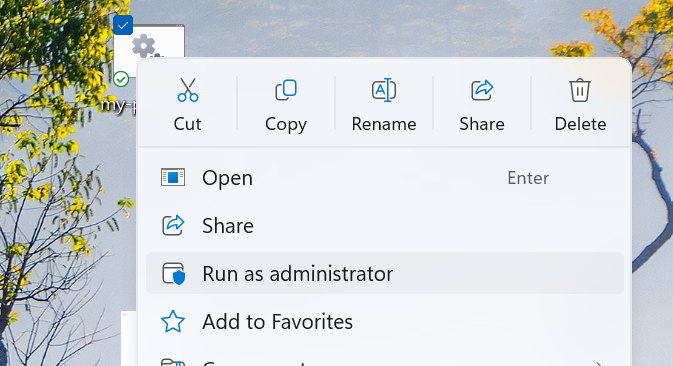
Run as Administrator
This is the fastest and most effective fix.
- Right-click the app or file
- Select "Run as administrator"
- Click “Yes” when prompted
This gives the program the permissions it needs to run properly.
Check Your Account Type
If your account is not an administrator, Windows will block certain actions.
- Go to Settings → Accounts
- Select Your Info
- Ensure it says Administrator
Take Ownership of the File or Folder
If a file is restricted, you may need to take ownership.
- Right-click file → Properties
- Go to Security → Advanced
- Click “Change” next to Owner
- Enter your username → Apply
Adjust User Account Control (UAC)
Strict UAC settings can trigger frequent permission prompts.
- Search for "User Account Control"
- Open settings
- Lower it slightly (do not turn it off completely)
Run System File Checker
Corrupted system files can cause permission errors.
- Open Command Prompt as administrator
- Run:
Wait for the scan to complete, then restart your computer.
Restart Your Computer
Restarting clears temporary system issues causing permission conflicts.
Advanced Fixes (If the Error Still Appears)
Enable Built-in Administrator Account
Windows includes a hidden administrator account with full system access.
Check Group Policy Settings
Some systems restrict permissions through group policy configurations.
Scan for Malware
Malware can sometimes interfere with system permissions.
Real Life Example
A common situation is when a user tries to install software and sees the administrator permission error.
Even though they own the computer, Windows blocks the action because it requires elevated permissions.
Running the installer as administrator immediately resolves the issue.
Frequently Asked Questions
Why do I see this error?
Can I disable this permanently?
Will this delete my files?
What is the fastest fix?
Final Thoughts
The "Administrator Permission Required" error is a common Windows security feature and is usually easy to resolve.
Start with simple fixes like running as administrator before moving to advanced solutions.
In most cases, the issue can be resolved within minutes.