
What This Error Means
Windows regularly downloads and installs updates to keep your system secure, stable, and up to date.
If an update fails, it usually means something interrupted the process — such as system errors, connection issues, or software conflicts.
You may notice:
- Updates failing repeatedly
- Error messages or codes during installation
- Updates stuck at a certain percentage
- System restarting but not completing updates
Common Symptoms
- Update fails to install repeatedly
- Error codes displayed during update
- Updates stuck downloading or installing
- System restarting without completing update
- Slow or interrupted update process
Why This Happens
- Internet connection problems
- Not enough disk space
- Corrupted update files
- Conflicting software or antivirus
- Temporary system errors
- Windows Update services not working properly
What Happens Behind the Scenes
When Windows installs an update, it downloads files, verifies them, and applies system changes during installation.
If any part of this process fails — such as a corrupted file, lost connection, or interrupted service — the update cannot complete.
That’s why updates may fail repeatedly or get stuck at a certain percentage.
Fixing the issue usually involves resetting update components or clearing temporary errors.
Quick Fix Summary
If you're in a hurry, try these first:
- Restart your computer
- Check your internet connection
- Free up disk space
- Run Windows Update Troubleshooter
These fixes resolve the issue for most users.
How to Fix Windows Update Failed to Install – Step by Step
Follow these steps in order. After each step, try installing the update again.
Restart Your Computer
Restarting clears temporary update errors.
- Restart your PC
- Try updating again
Check Your Internet Connection
Updates require a stable connection.
- Reconnect to WiFi or Ethernet
- Restart your router if needed
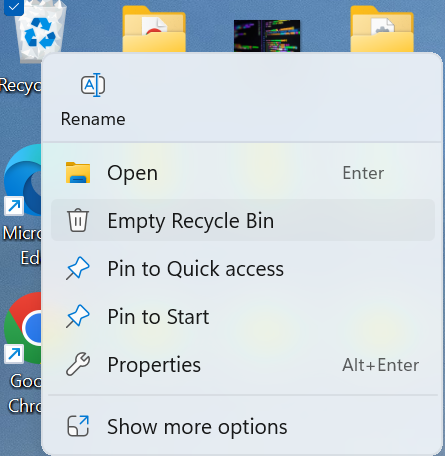
Free Up Disk Space
Updates may fail if storage is low.
- Delete unused files
- Empty recycle bin
- Use Disk Cleanup
Run Windows Update Troubleshooter
Windows includes a tool to fix update problems automatically.
- Go to Settings → Troubleshoot
- Select Windows Update
- Run the troubleshooter
Reset Windows Update Components
Resetting update services can fix stuck or failed updates.
- Open Command Prompt as administrator
- Run:
Disable Antivirus Temporarily
Security software can sometimes block updates.
- Disable antivirus temporarily
- Try installing updates again
Important: Only do this briefly.
Install Updates Manually
You can install updates directly from Microsoft.
- Search for the update code (KB number)
- Download from Microsoft Update Catalog
Restart Windows Update Service
Restarting services can fix update failures.
- Open Services
- Restart Windows Update service
Advanced Fixes (If Updates Still Fail)
Run System File Checker
sfc /scannowUse DISM Tool
DISM /Online /Cleanup-Image /RestoreHealthReset or Reinstall Windows
If nothing works, resetting Windows may solve the issue.
Real Example
A common scenario is when updates fail repeatedly with error codes.
This often happens due to corrupted update files or insufficient storage.
Resetting update services or freeing disk space usually resolves the issue quickly.
Frequently Asked Questions
Why do updates keep failing?
Can restarting fix update issues?
Do I need Windows updates?
What if updates still fail?
Final Thoughts
The "Windows Update Failed to Install" error is very common and usually easy to fix.
Start with simple steps like restarting and checking your connection before moving to advanced solutions.
In most cases, updates can be installed successfully within minutes.
If you're still having issues, check more solutions here: :contentReference[oaicite:0]{index=0}