What This Error Means
When your computer starts, Windows loads essential system files, drivers, and services needed for the operating system to run.
If any of these fail to load correctly, your system cannot complete the startup process.
You may notice:
- Black screen on startup
- Automatic restart loops
- Error messages during boot
- Windows not loading at all
Common Symptoms
- Computer stuck on startup screen
- Windows logo appears but doesn’t load
- System keeps restarting
- Recovery mode opens automatically
- Error messages during boot
Why This Happens
- Recent Windows update failed
- Corrupted system files
- External devices causing conflicts
- Power outage or improper shutdown
- Hard drive or hardware issues
- Boot configuration errors
What Happens Behind the Scenes
During startup, Windows reads boot configuration data and loads critical system files from your hard drive.
If something interrupts this process — such as a failed update, missing files, or hardware conflict — Windows cannot complete startup.
That’s why your system may get stuck, restart repeatedly, or show recovery options.
Quick Fix Summary
If you're in a hurry, try these first:
- Restart your computer
- Disconnect external devices
- Boot into Safe Mode
- Run Startup Repair
These fixes resolve the issue for many users.
How to Fix Windows Failed to Start – Step by Step
Follow these steps in order. After each step, check if Windows loads successfully.
Restart Your Computer (Quick Fix)
Temporary system issues can sometimes prevent Windows from starting.
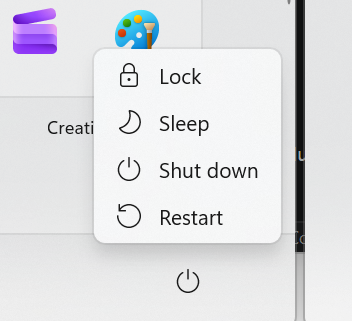
- Hold the power button to shut down
- Wait a few seconds
- Turn your PC back on
Disconnect External Devices
USB devices and peripherals can interfere with startup.
- Unplug USB drives, printers, and accessories
- Restart your PC
Boot into Safe Mode
Safe Mode loads only essential drivers and helps identify problems.
- Interrupt startup 2–3 times
- Enter Recovery Mode
- Select Safe Mode
If Windows starts, the issue is likely caused by software or drivers.
Run Startup Repair
Windows includes an automatic repair tool for startup issues.
- Enter Recovery Mode
- Select “Startup Repair”
- Let Windows attempt to fix the issue
Use System Restore
Restoring your system can undo recent changes causing the issue.
- Go to Advanced Options
- Select System Restore
- Choose a restore point
Repair System Files
Corrupted system files can stop Windows from loading.
- Open Command Prompt in recovery mode
- Run:
Check Disk for Errors
Disk issues can prevent Windows from starting properly.
- Run:
Rebuild Boot Configuration
Boot configuration errors can stop Windows from loading.
- Open Command Prompt
- Run boot repair commands
Advanced Fixes (If Windows Still Won’t Start)
Reset or Reinstall Windows
If the system is severely damaged, reinstalling Windows may be required.
Check Hardware Components
Faulty RAM or hard drives can cause startup failures.
Update BIOS or Firmware
Advanced users can update system firmware if needed.
Real Life Example
A common situation is when a Windows update fails and prevents the system from starting.
The computer may enter a restart loop or show an error message.
Using Startup Repair or System Restore usually resolves the issue quickly.
Frequently Asked Questions
Why won’t my computer start?
Is this a serious problem?
Can Safe Mode fix this?
What if nothing works?
Final Thoughts
The "Windows Failed to Start" error can look serious, but it is often fixable.
Start with simple steps like restarting and disconnecting devices before moving to advanced solutions.
In most cases, your system can be restored within minutes.