What This Means
When your computer is running slow, it usually means your system resources — such as CPU, memory (RAM), or disk — are being heavily used.
This can happen when too many programs are running at once, or when a single application is using more resources than it should.
You may notice:
- Apps taking longer to open
- System freezing or lagging
- Delayed response when clicking
- Loud fan noise
Common Symptoms
- Slow startup times
- Programs freezing or crashing
- High CPU or memory usage
- Lag when typing or clicking
- System becoming unresponsive
Why This Happens
- Too many programs running at once
- Too many startup applications
- High CPU or memory usage
- Low disk space
- Outdated drivers or system
- Malware or unwanted software
What Happens Behind the Scenes
Your computer has limited resources. When too many processes run at the same time, your system becomes overloaded.
Some programs — especially browsers, background apps, or poorly optimized software — can use a large portion of your CPU or memory.
When that happens, everything else slows down because your system is trying to manage too many tasks at once.
That’s why identifying what’s using your resources is the most important step.
Quick Fix Summary
If you're in a hurry, try these first:
- Restart your computer
- Close unused programs
- Check Task Manager
- Disable startup apps
These quick fixes resolve the issue for most users.
How to Fix Windows Running Slow – Step by Step
Follow these steps in order. After each step, check if your system performance improves.
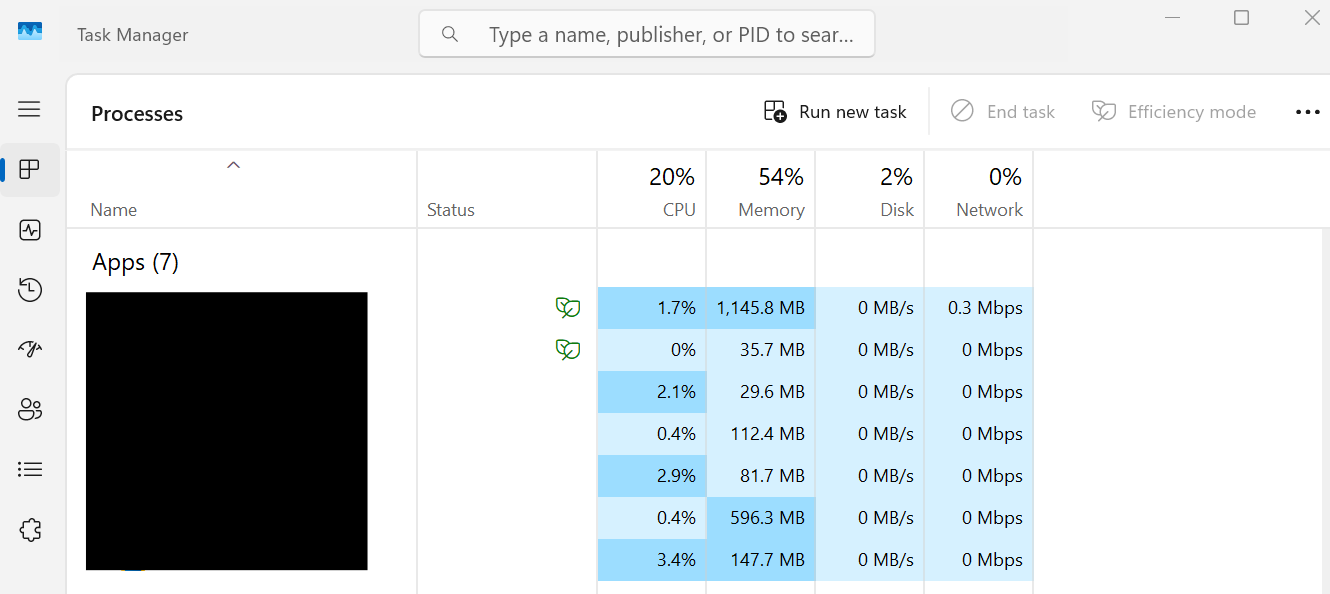
Check Task Manager (Most Important Step)
You need to identify what is using your system resources.
- Press Ctrl + Shift + Esc
- Sort by CPU or Memory usage
- Identify high-usage apps
Close Unnecessary Programs
Running too many apps at once can slow your system significantly.
- Select apps in Task Manager
- Click “End Task”
Only close programs you recognize.
Restart Your Computer
Restarting clears background processes and resets system performance.
- Restart your PC
- Check performance after startup
Disable Startup Programs
Too many startup apps can slow down your computer from the moment it turns on.
- Open Task Manager
- Go to Startup tab
- Disable unnecessary apps
Free Up Disk Space
Low storage space can reduce overall system performance.
- Delete unused files
- Uninstall unnecessary apps
- Use Disk Cleanup
Scan for Malware
Malware can run hidden processes that slow your system.
- Run Windows Defender or antivirus
- Remove any threats
Update Windows and Drivers
Outdated systems can cause performance problems.
- Go to Settings → Windows Update
- Install updates
- Update drivers in Device Manager
Adjust Power Settings
Power settings can limit your system’s performance.
- Go to Control Panel → Power Options
- Select “High Performance”
Advanced Fixes (If Your PC Is Still Slow)
Disable Visual Effects
Reducing animations can improve performance on slower systems.
Upgrade Hardware
Adding more RAM or switching to an SSD can significantly improve speed.
Reinstall Windows
If nothing works, a fresh install can restore performance.
Real Life Example
A common situation is when multiple browser tabs and applications are running at the same time.
This increases CPU and memory usage, causing lag and slow performance.
Closing unnecessary apps and restarting usually improves performance immediately.
Frequently Asked Questions
Why is my PC slow all of a sudden?
Does restarting improve performance?
Can malware slow my PC?
What is the fastest fix?
Final Thoughts
A slow computer is a very common issue and is usually easy to fix.
Start with simple steps like closing apps and restarting before moving to advanced solutions.
In most cases, your system performance will improve within minutes.
If you're still having issues, check more solutions here: