What This Error Means
When you plug in a USB device, your computer should automatically detect it and install the correct driver.
If that process fails, Windows cannot recognize the device — which is why you see this error.
You may notice:
- USB device not appearing
- Error message when plugging in the device
- Device showing as “Unknown Device”
- No response from the connected device
Common Symptoms
- USB device not detected
- Device disconnecting randomly
- Error message appearing on connection
- Device showing warnings in Device Manager
- No power or response from the device
Why This Happens
- Faulty or damaged USB port
- USB device malfunction
- Outdated or corrupted drivers
- Power supply issues
- System conflicts or bugs
- Too many USB devices connected
What Happens Behind the Scenes
When you connect a USB device, your system sends a signal to detect it and load the correct driver.
If that communication fails — either due to hardware, power, or software issues — Windows cannot identify the device.
That’s why it may show as “Unknown Device” or not appear at all.
Quick Fix Summary
If you're in a hurry, try these first:
- Try another USB port
- Restart your computer
- Reconnect the device
- Update drivers
These quick fixes resolve the issue for most users.
How to Fix USB Device Not Recognized – Step by Step
Follow these steps in order. After each step, check if your device is detected.
Try Another USB Port (Most Common Fix)
The USB port you are using may not be working properly.
- Plug the device into a different USB port
- Try both front and back ports
This is one of the quickest and most effective fixes.
Test the Device on Another Computer
This helps determine whether the issue is the device or your PC.
- Plug the USB device into another computer
- If it doesn’t work there, the device may be faulty
Restart Your Computer
Restarting clears temporary system errors that may block detection.
- Restart your PC
- Reconnect the device after startup
Reconnect the USB Device
Sometimes the connection just needs to be refreshed.
- Unplug the device
- Wait a few seconds
- Plug it back in firmly
Update or Reinstall USB Drivers
Driver issues are one of the most common causes.
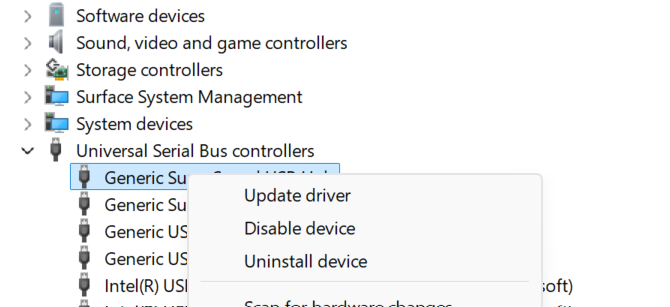
- Open Device Manager
- Expand “Universal Serial Bus controllers”
- Right-click → Update driver
If that doesn’t work, uninstall the device and restart your PC to reinstall it automatically.
Disconnect Other USB Devices
Too many connected devices can cause power or conflict issues.
- Unplug unnecessary USB devices
- Reconnect only the device you need
Check for Windows Updates
Updates often include fixes for hardware compatibility.
- Go to Settings → Windows Update
- Install all updates
Disable USB Power Saving
Windows may turn off USB ports to save power.
- Open Device Manager
- Go to USB Root Hub properties
- Disable power-saving option
Advanced Fixes (If USB Still Isn’t Recognized)
Update Chipset Drivers
Your motherboard drivers may need updating.
Check for Physical Damage
Inspect the USB device and port for visible damage.
Reset BIOS/Hardware Settings
Advanced users can reset hardware configurations if needed.
Real Life Example
A user plugs in a USB drive, but nothing happens.
The issue turns out to be a faulty USB port, and switching to another port fixes it instantly.
Frequently Asked Questions
Why is my USB not detected?
Can a USB device be damaged?
Does restarting fix USB issues?
What should I try first?
Final Thoughts
The "USB Device Not Recognized" issue is very common and usually easy to fix.
Start with simple steps like trying another port or restarting your computer before moving to advanced fixes.
In most cases, your device will start working again within minutes.