
Outlook uses an outgoing server (SMTP) to send emails. If that connection fails, your emails won’t be delivered.
Below, we’ll explain exactly why this happens and how to fix it step by step.
What This Issue Means
Outlook relies on an outgoing mail server called SMTP (Simple Mail Transfer Protocol) to send emails.
If Outlook cannot connect to this server, your messages will remain stuck in the outbox or fail to send.
You may notice:
- Emails stuck in the outbox
- Error messages when clicking “Send”
- Emails sending but not being delivered
- Outlook showing “Disconnected”
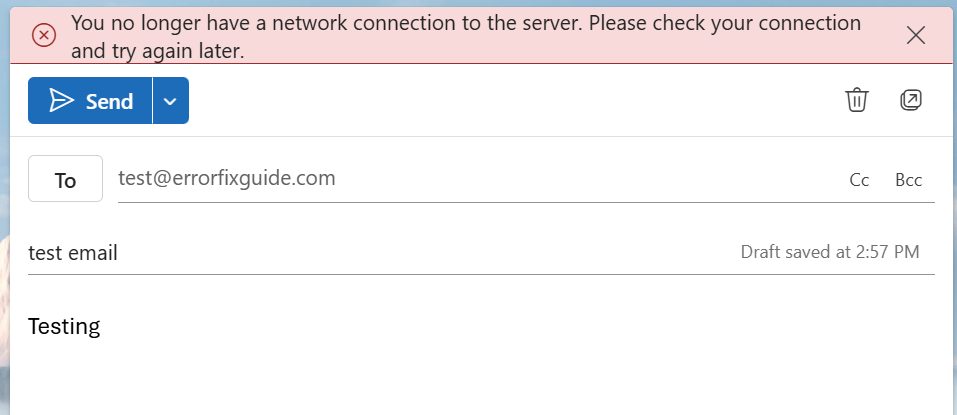
Common Symptoms
- Emails remain in the outbox
- Send/Receive errors appear
- Outlook freezes when sending emails
- Large emails fail to send
- Repeated password prompts
Why Outlook Cannot Send Emails
- Unstable or no internet connection
- Incorrect SMTP server settings
- Large attachments exceeding limits
- Outdated Outlook version
- Antivirus or firewall blocking emails
- Incorrect or expired login credentials
- Mailbox storage full
- Email provider server issues
Quick Fix Summary
If you're in a hurry, try these first:
- Restart Outlook
- Check your internet connection
- Reduce attachment size
- Update Outlook
These steps resolve the issue for most users.
How to Fix Outlook Cannot Send Emails (Step-by-Step)
Follow these steps in order. After each step, try sending an email again.
Check Your Internet Connection
Outlook requires a stable connection to send emails.
- Open a website to confirm internet access
- Restart your router if needed
- Switch to another network
Verify SMTP Server Settings
Incorrect SMTP settings are the most common cause.
- Go to File → Account Settings
- Select your account
- Check server address and port
- Ensure authentication is enabled
Reduce Attachment Size
Large attachments may exceed email limits.
- Compress files into ZIP format
- Use cloud storage (OneDrive or Google Drive)
Restart Outlook
Temporary issues can prevent emails from sending.
Disable Antivirus or Firewall Temporarily
Security software may block outgoing emails.
Only do this on trusted networks.
Check Account Credentials
Incorrect login details can prevent sending.
- Re-enter your password
- Sign out and back in
Free Up Mailbox Space
If your mailbox is full, emails may not send.
Turn Off Offline Mode
If Outlook is offline, emails will stay in the outbox.
Advanced Fixes (If Emails Still Won’t Send)
Check Email Provider Status
Sometimes the issue is on your provider’s side. If their servers are down, emails won’t send.
Repair Outlook Profile
- Go to Control Panel → Mail
- Create a new profile
- Add your account again
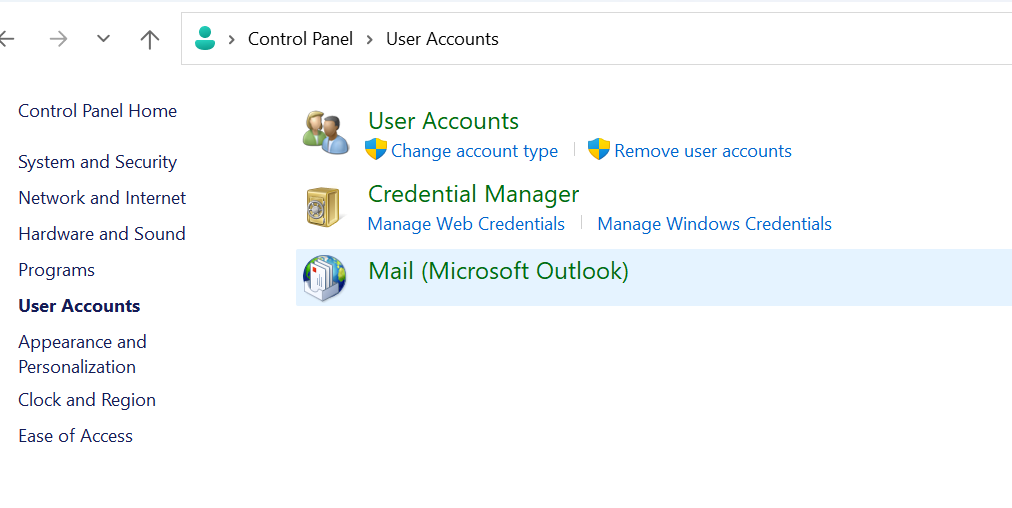
Re-add Your Email Account
Removing and re-adding your account can fix deeper issues.
Real Life Example
A common situation is when a user tries to send a large file and the email stays stuck in the outbox.
Once the attachment is compressed or uploaded to cloud storage, the email sends instantly.
Another example is incorrect SMTP settings after switching networks or email providers.
Frequently Asked Questions
Why can’t Outlook send my emails?
What is SMTP in Outlook?
Can attachments stop emails from sending?
What is the fastest fix?
Final Thoughts
The "Outlook cannot send emails" issue is common and usually easy to fix.
Start with simple steps before moving to advanced fixes.
In most cases, the issue can be resolved within minutes.