The good news is that this is a very common issue and is usually caused by connection problems or incorrect settings.
Below, we’ll walk through what this issue means and how to fix it step by step.
What This Issue Means
Outlook syncs emails by connecting to your email server using protocols like IMAP, Exchange, or POP.
When syncing fails, Outlook cannot download new emails or update existing ones.
You may notice:
- New emails not appearing
- Inbox not updating
- Emails delayed or missing
- Send/Receive errors
Common Symptoms
- Inbox not updating with new emails
- Emails appear on phone but not in Outlook
- Send/Receive process failing
- Outlook stuck on syncing
- Repeated connection errors
Why Outlook Is Not Syncing Emails
- Unstable or slow internet connection
- Email server issues
- Incorrect account settings
- Outdated Outlook version
- Conflicting add-ins
- Corrupted Outlook profile
- Outlook set to Work Offline mode
Quick Fix Summary
If you're in a hurry, try these first:
- Check your internet connection
- Restart Outlook
- Update Outlook
- Disable add-ins
These steps resolve the issue for most users.
How to Fix Outlook Not Syncing Emails (Step-by-Step)
Follow these steps in order. After each step, check if your emails start syncing again.
Check Your Internet Connection
Outlook requires a stable connection to sync emails.
- Open a website to confirm connectivity
- Restart your router or Wi-Fi
- Switch to a more stable network
Restart Outlook
Temporary issues can stop syncing.
Check “Work Offline” Mode
If Outlook is set to offline mode, it will not sync emails.
- Go to Send/Receive tab
- Ensure “Work Offline” is turned off
Verify Account Settings
Incorrect server settings can block syncing.
- Go to File → Account Settings
- Select your account
- Check server details and ports
Update Outlook
Outdated versions may contain bugs affecting syncing.
Disable Add-ins
Add-ins can interfere with Outlook syncing.
- Go to File → Options → Add-ins
- Disable all add-ins
- Restart Outlook
Create a New Outlook Profile
A corrupted profile can stop Outlook from syncing.
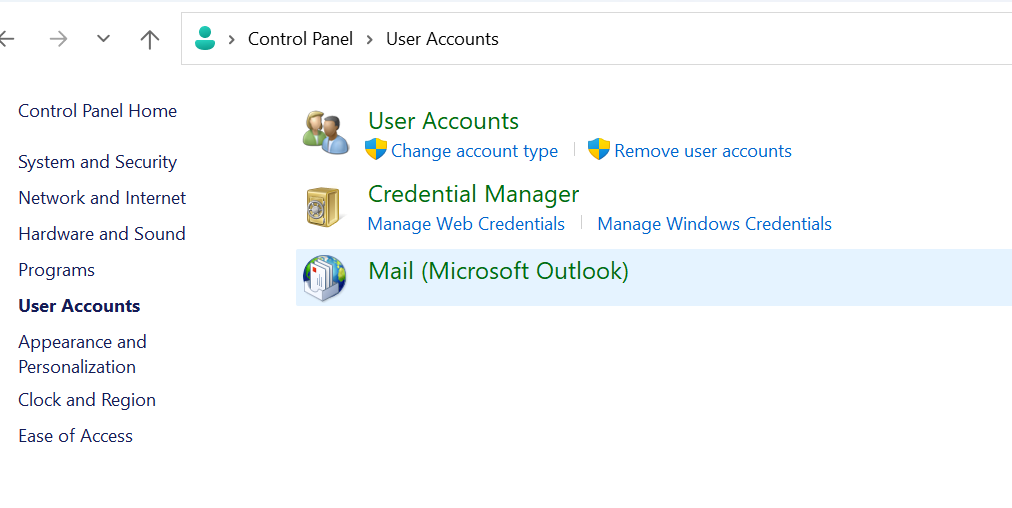
- Go to Control Panel → Mail
- Create a new profile
- Set it as default
Check Email Server Status
Sometimes the issue is on the server side.
Advanced Fixes (If Outlook Still Won’t Sync)
Increase Sync Frequency
Adjust send/receive settings to sync more frequently.
Re-add Email Account
Removing and re-adding your account can resolve persistent issues.
Clear Outlook Cache
Corrupted cache files can prevent syncing.
Real Life Example
A common situation is when Outlook stops syncing after switching networks or updating your system.
Outlook may fail to reconnect automatically, causing emails to stop updating.
Restarting Outlook or reconnecting the account usually resolves the issue quickly.
Frequently Asked Questions
Why is Outlook not syncing emails?
Can internet issues cause this?
Do add-ins affect syncing?
What is the fastest fix?
Final Thoughts
The "Outlook not syncing emails" issue is very common and usually easy to fix.
Start with simple steps before moving to advanced troubleshooting.
In most cases, syncing will resume within minutes.