
In most cases, the problem is caused by a simple issue such as a weak internet connection, security restrictions, or Outlook settings.
Below, we’ll walk you through exactly why this happens and how to fix it step by step.
What This Issue Means
Outlook relies on your internet connection and system settings to download attachments from emails.
If something interrupts that process, attachments may:
- Fail to download completely
- Not open when clicked
- Show an error message
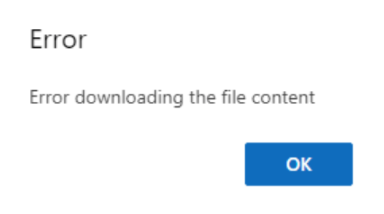
This doesn’t usually mean the file is broken — it just means Outlook cannot access it properly.
Common Symptoms
You might notice one or more of the following:
- Attachments won’t download or open
- Nothing happens when clicking the file
- Error messages appear when opening attachments
- Outlook freezes while accessing attachments
- Files download but fail to open
Why Outlook Cannot Download Attachments
- Unstable or slow internet connection
- Outlook blocking unsafe file types
- Antivirus or firewall interference
- Corrupted Outlook cache
- Outdated Outlook version
- Low storage space on your device
Quick Fix Summary
If you need a fast solution, try these first:
- Restart Outlook
- Restart your computer
- Check your internet connection
- Use Outlook in your browser (web version)
These quick steps resolve the issue for most users.
How to Fix Outlook Cannot Download Attachments (Step-by-Step)
Follow these steps in order. After each step, try downloading the attachment again.
Restart Outlook
Temporary glitches can prevent attachments from downloading properly.
- Close Outlook completely
- Wait a few seconds
- Reopen and try again
Check Your Internet Connection
A stable connection is required to download attachments.
- Open a website in your browser
- If it fails, restart your router
- Try another network if possible
Use Outlook Web (Best Workaround)
If the desktop app doesn’t work, the web version often does.
- Open Outlook in your browser
- Find the same email
- Download the attachment
This is one of the most reliable fixes.
Check File Type Restrictions
Outlook blocks certain file types for security reasons.
- .exe
- .bat
- .js
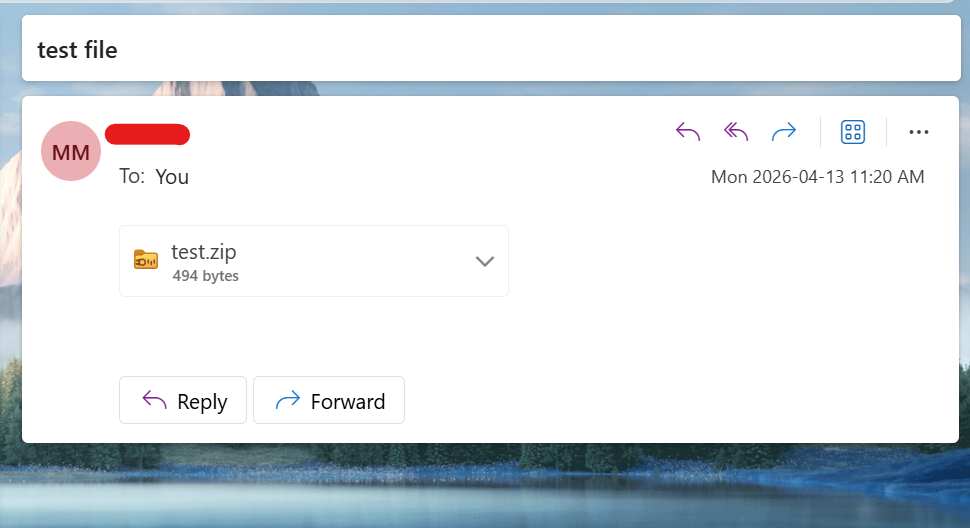
Fix: Ask the sender to send the file as a .zip or convert it to a safer format.
Disable Antivirus or Firewall Temporarily
Security software can sometimes block attachments.
Disable it briefly and test again (only for trusted files).
Check Storage Space
If your device is low on storage, downloads may fail.
- Delete unnecessary files
- Free up space
Update Outlook
Outdated versions can cause bugs and compatibility issues.
Advanced Fixes (If Attachments Still Won’t Download)
Clear Outlook Cache
Corrupted temporary files can block downloads. Clearing the cache allows Outlook to reload attachment data properly.
Re-add Your Email Account
- Remove your account from Outlook
- Add it again with correct settings
Check Email Server
Sometimes the issue is on the server side. If the server is down, attachments won’t download until it’s restored.
Real Life Example
A common situation is when a company email system blocks certain file types for security reasons.
Users may try downloading an attachment, but nothing happens — even though the file is safe.
In these cases, opening the email in Outlook Web or asking for a ZIP version usually solves the issue immediately.
Frequently Asked Questions
Why can’t I download attachments in Outlook?
Can antivirus block attachments?
Does restarting fix it?
What is the fastest fix?
Final Thoughts
The "Outlook cannot download attachments" issue is very common and usually easy to fix.
Start with simple solutions like restarting Outlook or using the web version before trying advanced steps.
In most cases, the issue is temporary and can be resolved within minutes.