
In most cases, the problem is related to file settings, security restrictions, or software issues rather than the attachment itself.
Below, we’ll walk through exactly why this happens and how to fix it step by step.
What This Issue Means
Outlook relies on your system, installed apps, and security settings to open attachments.
When everything is working properly, Outlook downloads the file and opens it using the correct program (such as Word, a PDF reader, or an image viewer).
If something is misconfigured, attachments may:
- Fail to open completely
- Do nothing when clicked
- Show an error message
- Open as a blank or corrupted file
Common Symptoms
- Attachments won’t open when clicked
- Error messages appear when opening files
- Files download but won’t launch
- Outlook freezes when opening attachments
- Files open in the wrong program
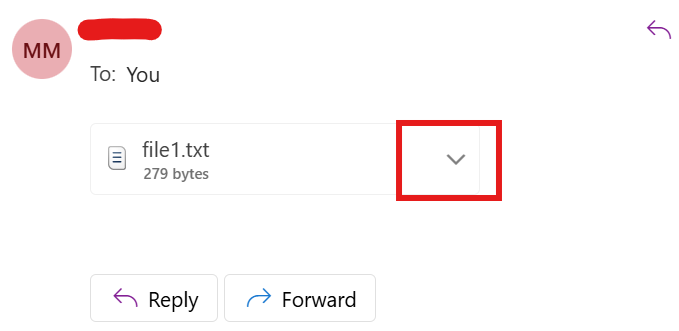
Why Outlook Cannot Open Attachments
- Incorrect file associations (wrong default app)
- Outlook or Microsoft Office corruption
- Antivirus or firewall blocking attachments
- Outdated Outlook or Windows version
- Unsupported or restricted file types
- Blocked files due to Windows security
Quick Fix Summary
If you want a fast solution, try these first:
- Restart Outlook
- Restart your computer
- Open the file using Outlook Web
- Update Outlook
These simple steps fix the issue for most users.
How to Fix Outlook Cannot Open Attachments (Step-by-Step)
Follow these steps in order. After each step, try opening the attachment again.
Restart Outlook
Temporary glitches can prevent attachments from opening properly.
- Close Outlook completely
- Wait a few seconds
- Reopen Outlook
Check File Associations
Your system must know which app to use to open each file type.
- Right-click the file
- Select “Open with”
- Choose the correct app
- Set it as default
Use Outlook Web (Best Workaround)
If the desktop app doesn’t work, the web version often does.
- Open Outlook in your browser
- Download the attachment
- Open it manually
Check for Blocked Files
Windows may block files downloaded from email.
- Right-click the file
- Select Properties
- Click “Unblock” if available
Disable Antivirus Temporarily
Security software may block attachments.
Only do this for trusted files.
Update Outlook
Outdated versions can cause compatibility issues.
Repair Outlook
If Outlook is corrupted, attachments may fail to open.
Open Outlook in Safe Mode
Add-ins can interfere with attachments.
Hold Ctrl while opening Outlook to start in Safe Mode.
Advanced Fixes (If Attachments Still Won’t Open)
Check Default Apps
Make sure Windows has the correct default apps for file types like PDF, DOCX, and images.
Reinstall Outlook
Reinstalling Outlook can fix deeper system issues.
Check File Permissions
Some files may be restricted due to system permissions.
Real Life Example
A common situation is when a user downloads a PDF attachment but nothing happens when clicking it.
This often happens because no default PDF reader is set on the system.
Once a proper app is selected, the file opens normally without any issues.
Frequently Asked Questions
Why can’t I open attachments in Outlook?
Can antivirus block attachments?
Does repairing Outlook delete data?
What is the fastest fix?
Final Thoughts
The "Outlook cannot open attachments" issue is common and usually easy to fix once you identify the cause.
Start with simple fixes before moving to advanced steps.
In most cases, the issue can be resolved within minutes.