
In most cases, this isn’t actually an error. Outlook is deliberately preventing the file from opening as part of its built-in security system. While this can feel frustrating, it’s designed to protect your computer from harmful files.
The good news is that this issue is usually easy to understand and fix once you know what’s causing it.
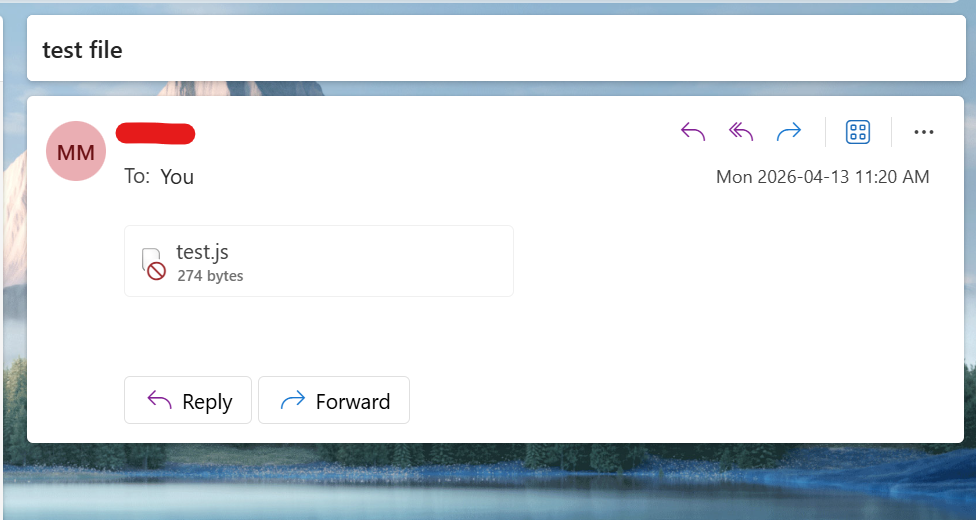
This is what a blocked attachment looks like in the new version of Outlook:
Why you may not see a warning message
In newer versions of Outlook, Microsoft has simplified how blocked attachments are displayed. Instead of showing a full warning banner, Outlook may simply disable the attachment and prevent access.
This can make it seem like nothing is happening, but the file is still being blocked for security reasons.
What This Issue Really Means
Outlook automatically blocks certain types of attachments that are considered unsafe. These are usually files that can run code or make changes to your system.
Some of the most commonly blocked file types include:
- .exe (application files)
- .bat or .cmd (script files)
- .js (JavaScript files)
- .vbs (Visual Basic scripts)
Even if the file is completely safe, Outlook will still block it by default. This is intentional and helps reduce the risk of viruses or malware being opened accidentally.
Why Outlook Blocks Attachments
There are several reasons why Outlook may block attachments. Understanding these can help you quickly figure out what’s happening.
- Restricted file types: Certain extensions are automatically blocked
- Work or company policies: Business accounts often have stricter rules
- Antivirus software: Your security tools may prevent downloads
- Temporary glitches: Outlook bugs can sometimes cause false blocks
- Untrusted sender: Files from unknown sources are treated with caution
When This Usually Happens
You’ll typically run into this issue in situations like:
- Receiving attachments from external senders
- Downloading files from automated emails
- Using a company-managed Outlook account
- Opening executable or script-based files
- After a recent system or security update
Knowing when it happens helps you understand whether it’s normal behavior or something that needs attention.
Quick Fix Summary
If you’re in a hurry, try these first:
- Ask the sender to send the file as a ZIP
- Check if the file type is restricted
- Restart Outlook
- Try opening the email in Outlook Web
How to Fix Outlook Attachments Blocked (Step-by-Step)
Follow these steps in order. Most users resolve the issue within the first few steps.
Check the File Type
If the file is a restricted type like .exe or .bat, Outlook will block it automatically.
Fix: Ask the sender to rename the file or convert it into a safer format such as .zip or .pdf.
Ask for a ZIP Version
Compressing the file into a ZIP format is one of the easiest and most reliable workarounds.
Fix: Ask the sender to right-click the file and choose “Send to → Compressed Folder.”
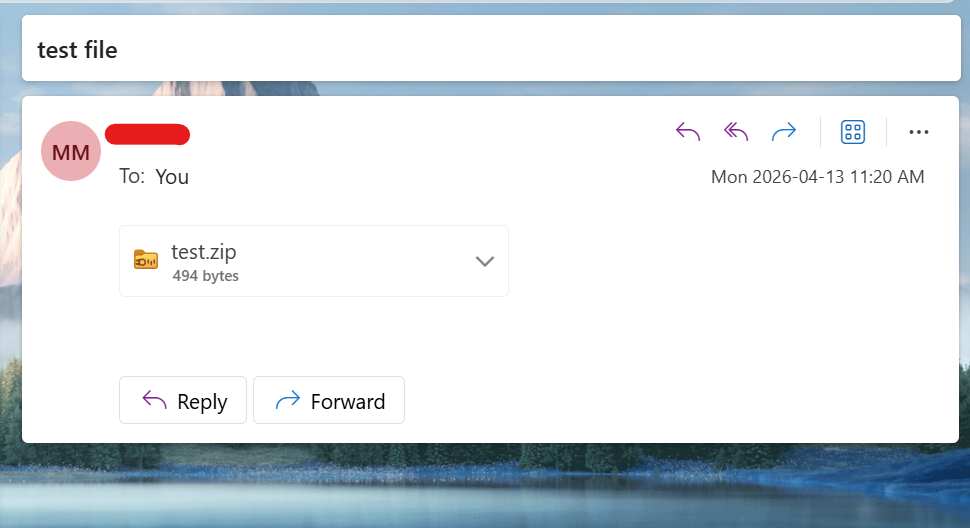
This is what a working ZIP attachment looks like in Microsoft Outlook:
Restart Outlook
Sometimes Outlook may block attachments due to temporary issues or glitches.
- Close Outlook completely
- Wait a few seconds
- Reopen and try again
Check Antivirus or Security Software
In some cases, your antivirus software may block attachments even if Outlook allows them.
Fix: Temporarily disable it (only if you trust the file), then try again.
Use Outlook Web
The web version of Outlook sometimes allows downloads that are blocked in the desktop app.
- Log into Outlook in your browser
- Open the email
- Download the attachment
Update Outlook
Keeping Outlook updated can fix bugs that affect attachments.
- Go to File → Office Account
- Click Update Options → Update Now
Common Mistakes to Avoid
- Trying to open blocked files directly without changing the format
- Disabling security features permanently
- Assuming it’s a bug instead of a security feature
- Ignoring file type restrictions
When to Contact IT Support
If you’re using a work or company email account, attachment blocking may be controlled by admin-level settings.
- The file is safe but still blocked
- You cannot download attachments at all
- Multiple files are being blocked incorrectly
- Your organization has strict security policies
Extra Tips to Prevent This Issue
- Use cloud storage (Google Drive or OneDrive) instead of attachments
- Avoid sending executable files directly
- Keep Outlook and Windows updated
- Only open files from trusted sources
Real Life Example
A common situation we see is someone receiving an important file from a colleague or client, only to find that Outlook has blocked the attachment completely.
For example, a user receives a file ending in .exe from a trusted coworker. When they try to open it, Outlook blocks it immediately. At first, they assume something is broken or missing.
In reality, Outlook is doing exactly what it’s supposed to do — preventing potentially risky files from being opened.
In this case, the fix was simple: the sender compressed the file into a ZIP folder and resent it. Once received, the user was able to download and access the file without any issues.
This is why understanding how Outlook handles attachments can save time and prevent unnecessary frustration.
Final Thoughts
Outlook blocking attachments is not a fault — it’s a built-in protection feature.
In most cases, the quickest solution is to change the file format or use a ZIP file.
If the problem continues, it may be related to security settings, antivirus software, or company restrictions.