Device Driver Not Installed Properly – Complete Fix Guide (Step-by-Step)
Seeing a "device driver not installed properly" error usually means your computer is struggling to communicate with a hardware device.
This can affect things like USB devices, printers, graphics cards, or even your audio — causing them to stop working or not appear at all.
It might seem like a serious issue, but in most cases, it’s actually very easy to fix once you know what’s causing it.
If you're running into similar issues, check out our Windows troubleshooting guides for more step-by-step solutions.
The steps below apply to most versions of Windows. Depending on your version, some menus may look slightly different, but the process remains the same.
What This Error Means
A driver is a piece of software that allows Windows to communicate with your hardware.
Without a working driver, your system doesn’t know how to use the device properly.
When the driver is missing, outdated, or corrupted, the device may:
- Not work at all
- Show errors in Device Manager
- Appear as an “Unknown Device”
- Work inconsistently or disconnect randomly
Common Symptoms
- Device not detected by Windows
- Yellow warning icon in Device Manager
- Hardware not functioning correctly
- Error messages related to drivers
- Device disconnecting or lagging
Why This Happens
- Driver installation failed or was incomplete
- Driver is outdated or incompatible
- Windows installed a generic driver
- Device not detected properly
- Software or system conflict
- Corrupted driver files
What Happens Behind the Scenes
When you connect a device, Windows automatically tries to install a compatible driver.
If it fails or installs the wrong one, your system can’t properly communicate with the hardware — which leads to errors or the device not working.
This is why the issue often appears after:
- Plugging in a new device
- Updating Windows
- Installing new software
The fix is usually just correcting or reinstalling the driver.
Quick Fix Summary
If you're in a hurry, try these first:
- Restart your computer
- Reconnect the device
- Update the driver
- Check Device Manager
These quick fixes resolve the issue for most users.
How to Fix Device Driver Not Installed Properly – Step by Step
Follow these steps in order. After each step, check if your device starts working again.
Restart Your Computer (Quick Fix)
Temporary system issues can prevent drivers from loading properly.
- Restart your PC
- Reconnect the device after startup
Reconnect the Device
The device may not have been detected correctly the first time.
- Unplug the device
- Wait a few seconds
- Plug it back in
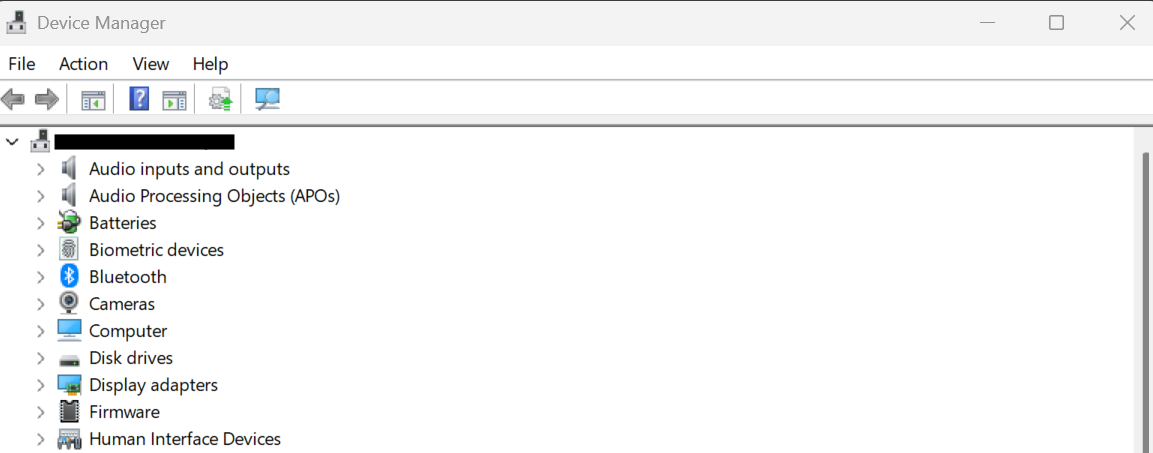
Check Device Manager for Errors
Windows shows driver issues with warning icons.
- Open Device Manager
- Look for yellow warning symbols
- Right-click device → Properties
Update the Driver
Outdated drivers are one of the most common causes.
- Right-click device in Device Manager
- Select "Update driver"
- Choose automatic search
For best results, download the latest driver directly from the manufacturer’s website.
Reinstall the Driver
Reinstalling removes corrupted or broken driver files.
- Right-click device → Uninstall
- Restart your computer
- Windows will reinstall the driver automatically
Install Driver Manually
Sometimes Windows installs the wrong driver.
- Go to the manufacturer’s website
- Download the correct driver
- Install it manually
Check Windows Updates
Updates often include important driver fixes and improvements.
- Go to Settings → Windows Update
- Install all pending updates
Try a Different USB Port or Device
Sometimes the issue is hardware-related, not software.
- Switch USB ports
- Test the device on another computer
Advanced Fixes (If the Driver Still Doesn’t Work)
Roll Back Driver
If the issue started after an update, rolling back the driver can fix compatibility problems.
Check Driver Compatibility
Make sure the driver supports your specific version of Windows.
Scan for Hardware Issues
If nothing works, the device itself may be faulty.
Real Life Example
A user plugs in a new USB headset, but it doesn’t work and shows an error in Device Manager.
Windows installed a generic driver that wasn’t compatible.
After downloading the correct driver from the manufacturer’s website, the device worked instantly.
Frequently Asked Questions
Why is my device not working?
Do I need to reinstall the driver?
Can Windows fix drivers automatically?
Is this a serious issue?
Final Thoughts
The "device driver not installed properly" error is very common and usually easy to fix.
Start with simple steps like restarting and reconnecting your device before moving to advanced fixes.
In most cases, your device will start working again within minutes.