
In most cases, this problem is caused by add-ins, corrupted profiles, or startup conflicts.
Below, we’ll walk through what this issue means and how to fix it step by step.
What This Issue Means
When Outlook starts, it loads your profile, email data, settings, and server connections.
If any part of this process fails, Outlook may freeze or get stuck on the loading screen.
You may notice:
- Outlook stuck on “Loading Profile”
- Application not responding
- Outlook taking a long time to open
- Outlook freezing during startup
Common Symptoms
- Outlook never fully opens
- App freezes on startup screen
- Repeated loading without progress
- Outlook crashes after loading
- Slow startup performance
Why Outlook Gets Stuck on Loading Profile
- Corrupted Outlook profile
- Conflicting or faulty add-ins
- Network connection issues
- Antivirus or security software interference
- Outdated Outlook or Windows version
- Corrupted PST or OST data files
Quick Fix Summary
If you need a fast solution, try these first:
- Restart your computer
- Open Outlook in Safe Mode
- Disable add-ins
- Update Outlook
These steps resolve the issue for most users.
How to Fix Outlook Stuck on Loading Profile (Step-by-Step)
Follow these steps in order. After each step, try opening Outlook again.
Restart Your Computer
A restart clears temporary system issues that may prevent Outlook from starting.
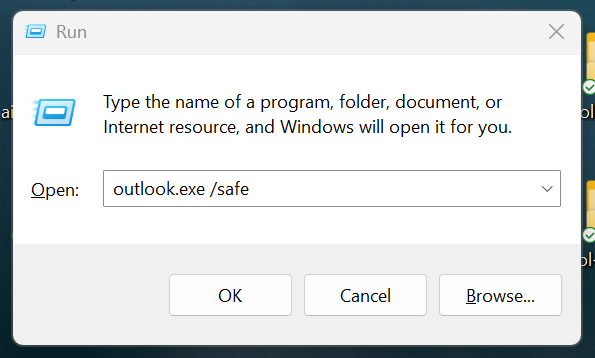
Start Outlook in Safe Mode
Safe Mode disables add-ins and custom settings that may cause Outlook to freeze.
- Press Windows + R
- Type outlook.exe /safe
- Press Enter
If Outlook opens, an add-in is likely causing the issue.
Disable Add-ins
Faulty add-ins are one of the most common causes.
- Go to File → Options → Add-ins
- Disable all add-ins
- Restart Outlook
- Re-enable add-ins one by one
Check Internet Connection
Outlook may hang during startup if it cannot connect to the server.
- Ensure your connection is stable
- Restart your router if needed
Update Outlook
Outdated versions may contain bugs causing startup issues.
Repair Outlook Installation
Corrupted installation files can prevent Outlook from opening.
- Go to Control Panel → Programs
- Select Microsoft Office
- Click “Repair”
Create a New Outlook Profile
A corrupted profile can cause Outlook to freeze during startup.
- Go to Control Panel → Mail
- Click “Show Profiles”
- Create a new profile
- Set it as default
Disable Hardware Acceleration
Hardware acceleration can sometimes cause startup issues.
Advanced Fixes (If Outlook Still Won’t Open)
Repair PST/OST Files
Corrupted data files can prevent Outlook from loading properly.
Reinstall Outlook
Reinstalling Outlook can fix deeper system issues.
Check for Conflicting Software
Some third-party programs may interfere with Outlook startup.
Real Life Example
A common scenario is when a new add-in is installed and Outlook gets stuck on the loading profile screen.
Opening Outlook in Safe Mode disables the add-in, allowing the app to open normally.
Removing the faulty add-in resolves the issue completely.
Frequently Asked Questions
Why is Outlook stuck on loading profile?
Can add-ins cause this?
Will I lose emails if I fix this?
What should I try first?
Final Thoughts
The "Outlook stuck on loading profile" issue is common and usually easy to fix.
Start with simple steps like Safe Mode and disabling add-ins before moving to advanced fixes.
In most cases, Outlook will open normally within minutes.