The good news is that this is a very common problem and is usually caused by connection issues or incorrect settings.
Below, we’ll walk through exactly what this error means and how to fix it step by step.
What This Issue Means
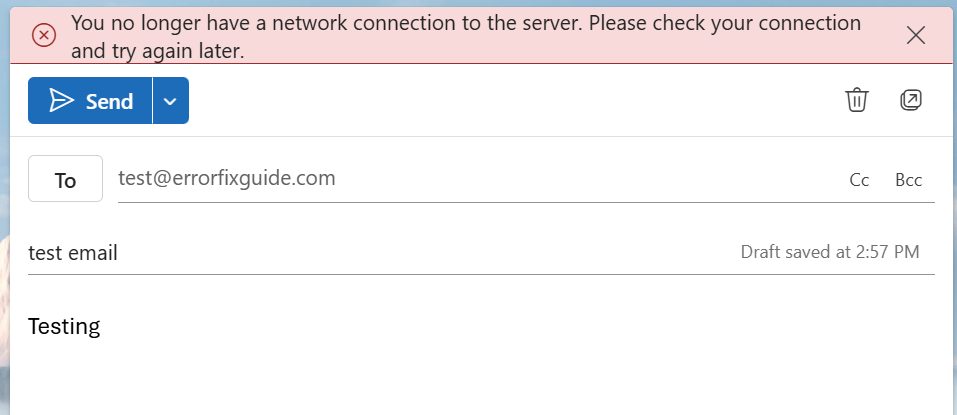
Error 0x800CCC0E appears when Outlook fails to establish a connection with your email server.
Outlook relies on server communication (IMAP, POP, and SMTP). If that connection fails, Outlook cannot sync your emails.
You may notice:
- Emails not sending or receiving
- Connection timeout errors
- Repeated send/receive failures
- Outlook showing “Disconnected”
Common Symptoms
- Outlook cannot connect to server
- Send/Receive errors appear
- Emails stuck in outbox
- Inbox not updating
- Password prompts appearing repeatedly
Why Outlook Error 0x800CCC0E Happens
- Unstable or no internet connection
- Incorrect email account settings
- Firewall or antivirus blocking Outlook
- Corrupted Outlook profile
- Email server downtime
- Incorrect port or encryption settings
Quick Fix Summary
If you're in a hurry, try these first:
- Check your internet connection
- Verify account settings
- Restart Outlook
- Disable antivirus temporarily
These steps resolve the issue for most users.
How to Fix Outlook Error 0x800CCC0E (Step-by-Step)
Follow these steps in order. After each step, check if Outlook connects successfully.
Check Your Internet Connection
Outlook requires a stable connection to reach your email server.
- Open a website in your browser
- Restart your router or Wi-Fi
- Switch networks if needed
Verify Email Account Settings
Incorrect server settings are the most common cause of this error.
- Go to File → Account Settings
- Select your account
- Check IMAP/POP and SMTP server details
- Ensure authentication is enabled
Restart Outlook
Temporary glitches can interrupt server connections.
Disable Antivirus or Firewall Temporarily
Security software may block Outlook from connecting.
Only do this on trusted networks.
Create a New Outlook Profile
A corrupted profile can prevent Outlook from connecting properly.
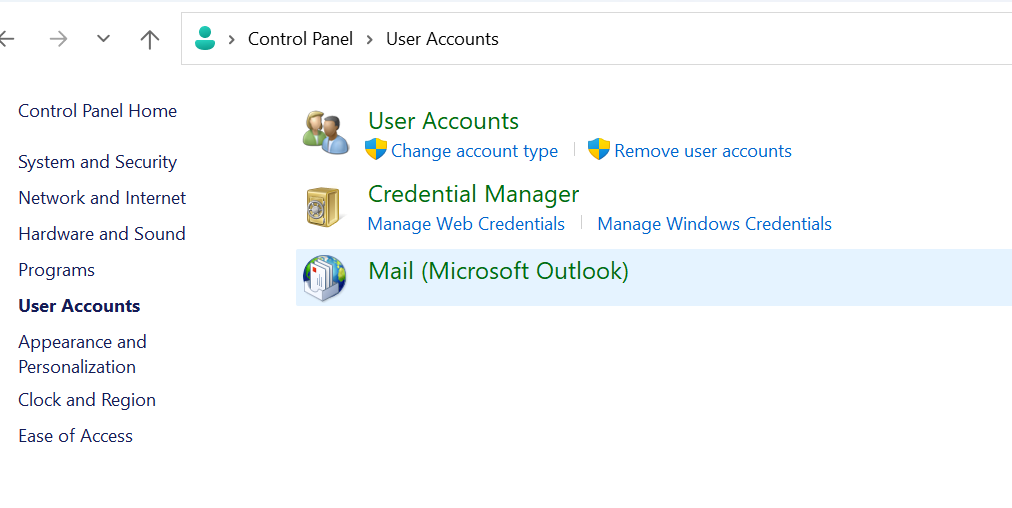
- Go to Control Panel → Mail
- Click “Show Profiles”
- Create a new profile
- Set it as default
Check Email Server Status
Sometimes the issue is on the server side.
- Check your email provider’s status page
- Wait if there is an outage
Check Port and Encryption Settings
Incorrect ports or encryption settings can block connections.
- Verify SMTP port (usually 587 or 465)
- Check IMAP/POP ports
- Ensure SSL/TLS is enabled if required
Advanced Fixes (If Error Still Appears)
Repair Outlook Installation
Corrupted Outlook files can cause connection failures.
Re-enter Account Credentials
Incorrect or expired passwords may block access.
Recreate Email Account
Removing and re-adding your account can resolve persistent issues.
Real Life Example
A common scenario is when a user changes their email password or switches internet networks.
Outlook may continue using old credentials or settings, resulting in error 0x800CCC0E.
Updating the account settings or reconnecting usually resolves the issue instantly.
Frequently Asked Questions
What does error 0x800CCC0E mean?
Is this a server issue or my problem?
Can antivirus cause this error?
What is the fastest fix?
Final Thoughts
The Outlook error 0x800CCC0E is a common connection issue and usually easy to fix.
Start with simple checks before moving to advanced solutions.
In most cases, Outlook will reconnect within minutes.