
In most cases, the problem is caused by connection issues, outdated credentials, or incorrect account settings.
Below, we’ll walk through what this issue means and how to fix it step by step.
What This Issue Means
The repeated password prompt appears when Outlook cannot properly authenticate with your email server.
Even if your password is correct, Outlook may still ask for it repeatedly if it cannot maintain a stable connection or is using outdated credentials.
You may notice:
- Password pop-up appearing repeatedly
- Emails not sending or receiving
- Outlook stuck on “Trying to connect”
- Authentication errors
Common Symptoms
- Repeated password prompts
- Outlook not syncing emails
- Login window appearing after entering correct password
- Send/Receive errors
- Outlook stuck trying to connect
Why Outlook Keeps Asking for Your Password
- Incorrect username or password
- Unstable internet connection
- Corrupted saved credentials
- Outdated Outlook version
- Incorrect server settings
- Antivirus or firewall blocking Outlook
- Modern authentication not enabled
Quick Fix Summary
If you need a quick solution, try these first:
- Re-enter your password
- Restart Outlook
- Check your internet connection
- Update Outlook
These quick fixes resolve the issue for most users.
How to Fix Outlook Password Prompt Keeps Appearing (Step-by-Step)
Follow these steps in order. After each step, check if the password prompt stops appearing.
Verify Your Credentials
Make sure your email address and password are correct.
- Re-enter your password carefully
- Ensure Caps Lock is off
- Log into your email via browser to confirm
Check Your Internet Connection
A weak or unstable connection can prevent authentication.
- Open a website to confirm connectivity
- Restart your router
- Switch to a stable network
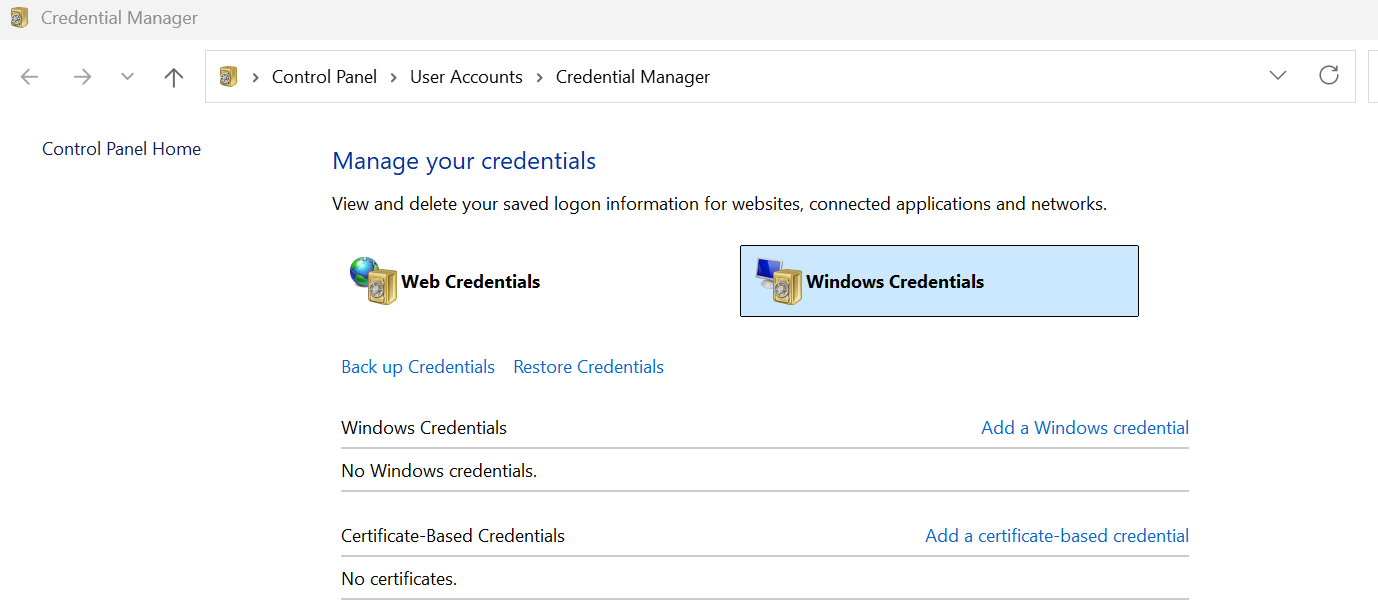
Clear Saved Credentials
Outdated or corrupted credentials can cause repeated prompts.
- Open Windows Credential Manager
- Remove Outlook-related entries
- Restart Outlook
- Enter your password again
Verify Account Settings
Incorrect server settings can cause authentication failures.
- Go to File → Account Settings
- Select your account
- Check server settings and authentication methods
Update Outlook
Outdated versions may contain bugs that trigger repeated prompts.
Disable Antivirus or Firewall Temporarily
Security software may block authentication requests.
Only do this on trusted networks.
Re-add Your Email Account
Your account setup may be corrupted.
- Remove your account from Outlook
- Add it again from scratch
Disable “Always Prompt for Credentials”
This setting may force Outlook to ask for your password repeatedly.
- Go to Account Settings
- Edit your account
- Uncheck “Always prompt for credentials”
Advanced Fixes (If Issue Still Persists)
Enable Modern Authentication
Older authentication methods can cause repeated login prompts.
Repair Outlook Installation
Corrupted Outlook files can trigger authentication issues.
Check Mail Server Compatibility
Ensure your email provider supports your authentication method.
Real Life Example
A common situation is when a user changes their email password but Outlook continues using old saved credentials.
Outlook repeatedly prompts for a password even when the correct one is entered.
Clearing saved credentials and re-entering the password usually resolves the issue instantly.
Frequently Asked Questions
Why does Outlook keep asking for my password?
Is my password wrong?
Can antivirus cause this?
What is the fastest fix?
Final Thoughts
The "Outlook password prompt keeps appearing" issue is very common and usually easy to fix.
Start with simple steps before moving to advanced troubleshooting.
In most cases, the issue can be resolved within minutes.