What This Error Means
Every device connected to a network needs an IP address to communicate with the router and access the internet.
Your router normally assigns this automatically using a system called DHCP (Dynamic Host Configuration Protocol).
If your device fails to receive an IP address, it cannot connect properly.
You may notice:
- Connected to Wi-Fi but no internet
- Limited or no connectivity
- Network troubleshooting errors
- Websites not loading
Common Symptoms
- Internet not working despite connection
- Frequent disconnections
- Network showing “No Internet”
- Slow or unstable connection
- Error appearing during troubleshooting
Why This Happens
- Your router failed to assign an IP address
- Network connection dropped or became unstable
- Network adapter needs refreshing
- Incorrect network settings
- Outdated or corrupted drivers
- DHCP service not working properly
What Happens Behind the Scenes
When your device connects to a network, it sends a request to the router asking for an IP address.
If the router doesn’t respond or something blocks the request, your device cannot join the network properly.
That’s why you might appear connected, but still have no internet access.
Quick Fix Summary
If you're in a hurry, try these first:
- Restart your router
- Restart your computer
- Reconnect to your network
- Refresh your IP address
These steps fix the issue for most users.
How to Fix IP Configuration Failed – Step by Step
Follow these steps in order. After each step, check if your internet connection is working again.
Restart Your Router (Most Effective Fix)
Your router may not be assigning IP addresses correctly.
- Turn off your router
- Wait 30–60 seconds
- Turn it back on
- Reconnect to your network
This fixes the issue in many cases.
Restart Your Computer
Restarting refreshes network settings and clears temporary issues.
- Restart your PC
- Reconnect after startup
Reconnect to Your Network
Your connection may have dropped or become unstable.
- Disconnect from Wi-Fi or Ethernet
- Reconnect manually
- Re-enter password if needed
Reset Network Adapter
Your network adapter may need refreshing.
- Go to Network Settings
- Disable your adapter
- Wait a few seconds
- Enable it again
Release and Renew IP Address
This forces your computer to request a new IP address.
- Open Command Prompt as administrator
- Run:
Restart your computer after running these commands.
Check Cable or Wi-Fi Signal
A weak or faulty connection can prevent IP assignment.
- Try another Ethernet cable
- Move closer to your router
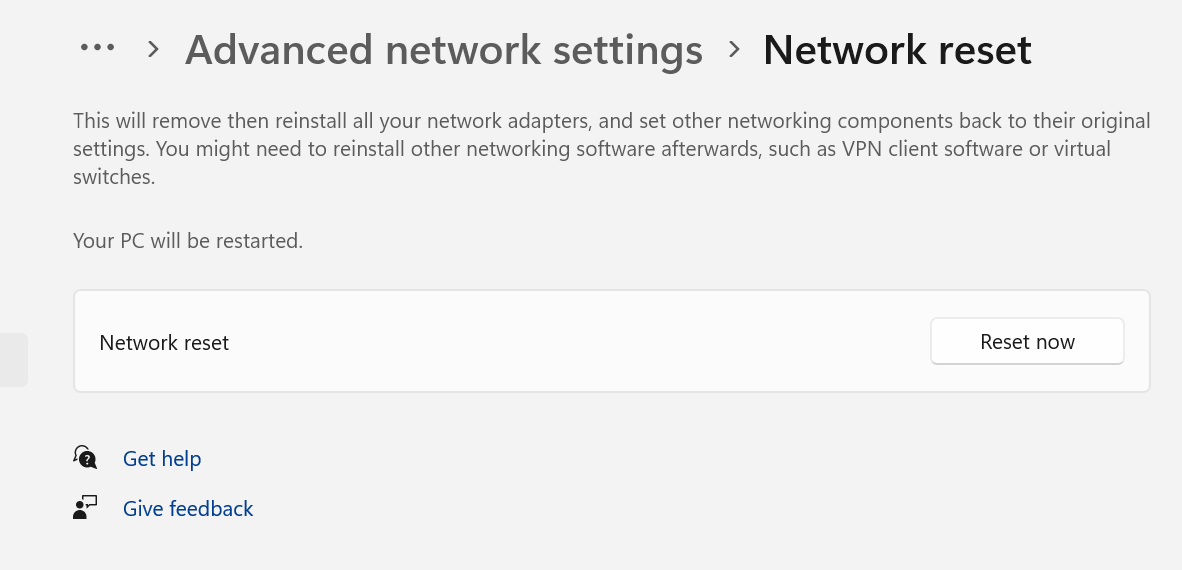
Reset Network Settings
This restores all network configurations to default.
- Go to Settings → Network
- Select “Network Reset”
- Restart your PC
Check DHCP Settings
Your router must assign IP addresses automatically.
- Log into your router settings
- Ensure DHCP is enabled
Advanced Fixes (If Issue Keeps Returning)
Reset TCP/IP Stack
Resetting network protocols can fix deeper configuration issues.
Update Network Drivers
Outdated drivers can cause IP assignment failures.
Check Router Firmware
Outdated router software can cause connection problems.
Real Life Example
A user connects to Wi-Fi, but no websites load.
The router fails to assign a valid IP address, causing the connection to fail.
Restarting the router or renewing the IP address resolves the issue immediately.
Frequently Asked Questions
Why does my internet say connected but not working?
What is an IP address?
Can this fix itself?
What is the fastest fix?
Final Thoughts
The "IP Configuration Failed" error is very common and usually easy to fix.
Start with simple fixes like restarting your router before moving to advanced steps.
In most cases, your internet connection will be restored within minutes.