DNS Server Not Responding – Complete Fix Guide (Step-by-Step)

Seeing a "DNS Server Not Responding" error usually means your device cannot properly connect to the internet — even though your Wi-Fi may still show as connected.
This can be confusing because everything looks normal, but websites won’t load at all.
In most cases, this happens because your system cannot translate website names (like google.com) into the actual server addresses needed to load them.
The good news is that this is a very common issue and can usually be fixed within minutes using the steps below.
If you're facing other network problems, check out our Windows troubleshooting guides for more fixes.
The steps below apply to most versions of Windows. Depending on your version, some menus may look slightly different, but the process remains the same.
What This Error Means
DNS (Domain Name System) is what allows your computer to find and connect to websites.
Instead of remembering complicated IP addresses, your system uses DNS to convert simple names like "youtube.com" into the correct server address.
When DNS is not working, your device cannot:
- Load websites
- Connect to apps that require internet
- Access online services
Common Symptoms
- Wi-Fi shows connected but no websites load
- Browser displays DNS errors
- Slow or unstable connection
- Pages taking too long to respond
- Internet randomly disconnecting
Why This Happens
- Temporary router or network issues
- Incorrect DNS settings
- Corrupted network configuration
- Firewall or antivirus blocking DNS
- ISP DNS servers not responding
- Network adapter issues
What Happens Behind the Scenes
When you type a website into your browser, your computer sends a request to a DNS server to find the correct IP address.
If that request fails, your browser has no idea where to go — so the page never loads.
That’s why you might still appear connected to Wi-Fi, but nothing actually works online.
Quick Fix Summary
If you're in a hurry, try these first:
- Restart your router
- Restart your computer
- Reconnect to Wi-Fi
- Switch DNS servers
These quick fixes solve the issue for most users.
How to Fix DNS Server Not Responding – Step by Step
Follow these steps in order. After each step, try loading a website again.
Restart Your Router (Most Effective Fix)
Temporary connection issues are the most common cause.
- Turn off your router
- Wait 30–60 seconds
- Turn it back on
- Reconnect to Wi-Fi
This alone fixes the issue in many cases.
Restart Your Computer
Restarting refreshes your network connection and clears temporary issues.
- Restart your PC
- Reconnect to your network
Reconnect to Your Network
Your connection may have dropped or become unstable.
- Disconnect from Wi-Fi
- Reconnect manually
- Enter your password again
Change DNS Server (Highly Effective Fix)
Switching to a reliable public DNS often fixes the problem instantly.
- Open Network Settings
- Set DNS to:
These are Google’s public DNS servers and are known to be fast and reliable.
Flush DNS Cache
Your system may be using outdated or corrupted DNS data.
- Open Command Prompt as administrator
- Run:
This clears stored DNS records and forces your system to refresh them.
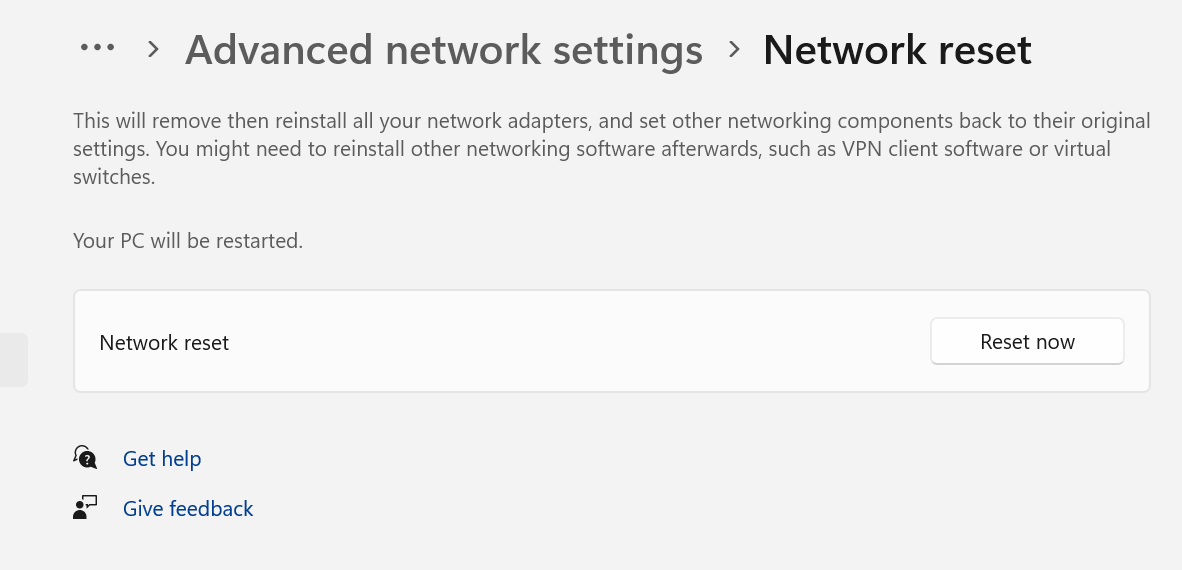
Reset Network Settings
This resets all network configurations to default.
- Go to Settings → Network
- Select “Network Reset”
- Restart your PC
Disable Antivirus or Firewall Temporarily
Some security software may block DNS requests.
- Disable antivirus/firewall temporarily
- Test your connection
Only do this briefly and on a trusted network.
Update Network Drivers
Outdated drivers can cause network and DNS issues.
- Open Device Manager
- Update network adapter drivers
Advanced Fixes (If DNS Still Isn’t Working)
Reset TCP/IP Stack
This resets deeper network configurations.
Check Router Firmware
Outdated router software can cause DNS failures.
Contact Your Internet Provider
Sometimes the issue is on your ISP’s side and not your device.
Real Life Example
A user notices their Wi-Fi is connected, but no websites load at all.
The issue turns out to be a DNS failure — their device cannot resolve website names.
Switching to Google’s DNS instantly restores internet access.
Frequently Asked Questions
Why can’t I open websites if Wi-Fi is connected?
What is DNS in simple terms?
Will restarting fix this?
What is the fastest fix?
Final Thoughts
The "DNS Server Not Responding" error is very common and usually quick to fix.
Start with simple steps like restarting your router before moving to advanced troubleshooting.
In most cases, your internet connection will be restored within minutes.